Five ways running coaches can use MCP with their roster
From the Monday attention list to a better weekly check-in

On Monday morning you might need a name. On Friday afternoon you might already know whom to call and need a good first question. Connecting an AI assistant to NexRex through Model Context Protocol (MCP) lets you begin either conversation with the records your athletes have shared.
New to MCP? Connect your NexRex account, then try one question with a training week you remember.
1. Choose your first check-in on Monday
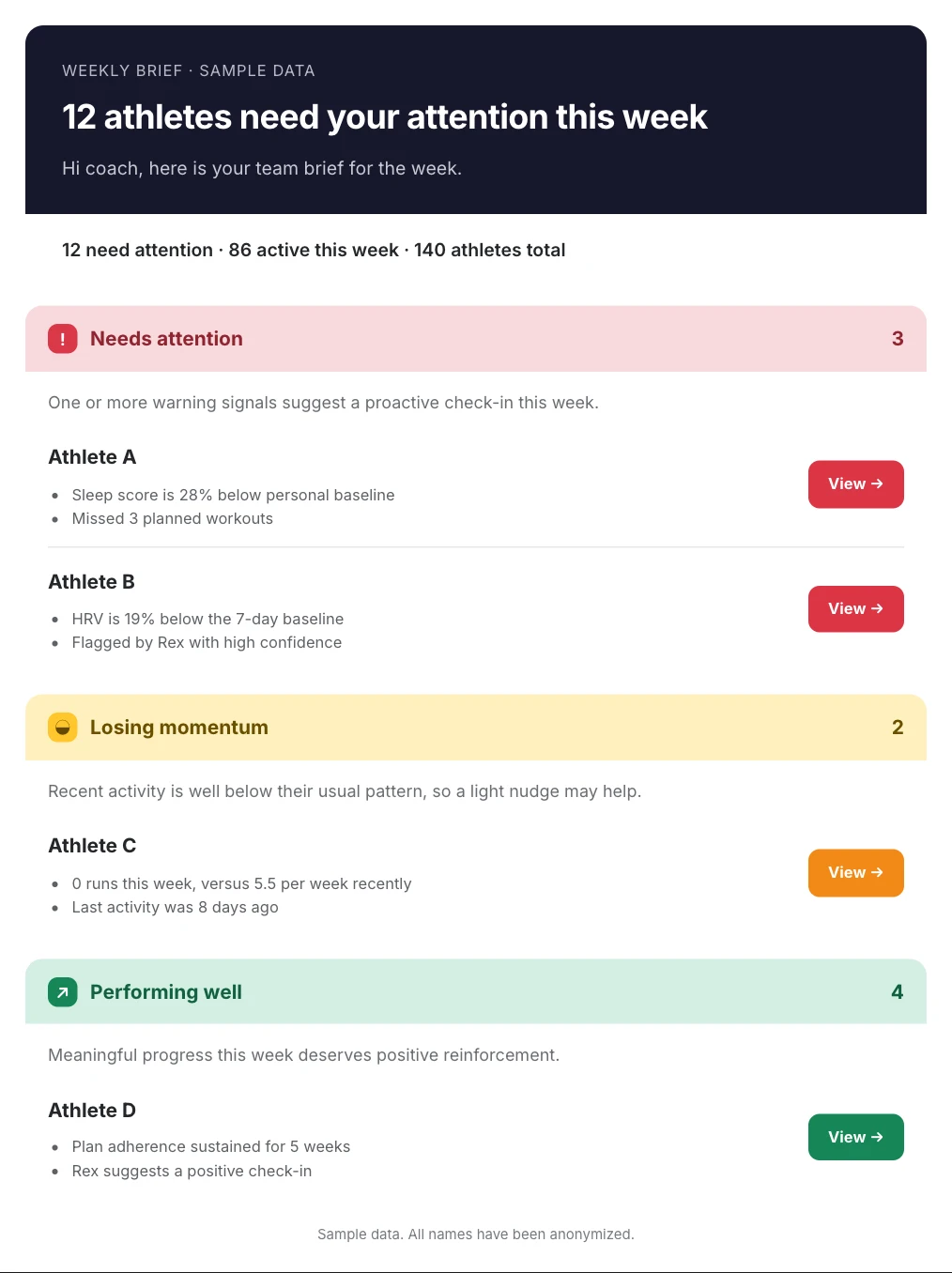
Ask “Who appears in my team overview today? Give the reason shown for each athlete and include anyone whose progress is worth acknowledging.” In the sample weekly brief below, Athlete A has three planned workouts marked missed. Athlete D has followed the plan for five weeks. One might appreciate a call and the other a quick word of encouragement.
2. Turn a gap in the weekly report into a question
Suppose Sunday’s long run is on an athlete’s calendar and there’s no matching activity. Ask “Show Sunday’s planned session and any recorded run that might match it. Leave the reason open if there’s no match.” An empty entry could mean a watch hasn’t synced, the runner moved the session, or the run never happened.
Here’s a check-in you could send yourself: “I saw Sunday’s long run doesn’t have a matching activity. How did it go?” The answer tells you whether to help with a sync issue, adjust the coming week, or simply listen.
3. Notice when recovery is worth a conversation
After a hard block, ask “Compare this athlete’s recent load and available recovery readings with their usual pattern. Which days have missing readings?” A harder week alongside a change in sleep can give you something specific to ask about. The runner can tell you whether they were travelling, felt unusually tired, or left the watch on the charger.
4. Revisit a plan when life changes
An athlete tells you they can only run twice during a travel week. Put that constraint in the request: “Show the two key sessions in next week’s plan. I have just learned my athlete is travelling Wednesday through Friday. Draft two options for us to discuss and leave the calendar as it is.” That keeps the athlete’s new information alongside the plan you originally agreed on.
5. Prepare one group session with individual targets
Before a club track night, ask “List the runners in this group and show the relevant training zones available for each. Mark anyone whose zones are missing.” You can give the group one session, then discuss pace or effort individually. For a new runner without a recent benchmark, that blank is a useful reminder to talk before assigning a target.
Connect your account
Add https://mcp.nexrex.ai/mcp in a compatible AI app, sign in to NexRex, and review the requested permissions. Ask “Which NexRex account am I connected to?” before asking about training. The assistant can retrieve records available to that account. For coaches, each athlete’s sharing settings also apply. Your AI provider handles the records it receives under its own terms.
Read access is enough for the examples here. Some apps request write access during setup, others when you first need it. Approval prompts for calendar changes depend on the client and any tools you have set to always allow. NexRex setup guide and tool permissions
For a first check, ask the assistant to use get_team_overview. Pick an athlete you have permission to see and compare the reason in the response with your coach console. If your team is missing, check the connected coach account and the athlete’s sharing settings.